Run Gemma 4 Offline on Your Smartphone: The Ultimate Guide to Google AI Edge Gallery
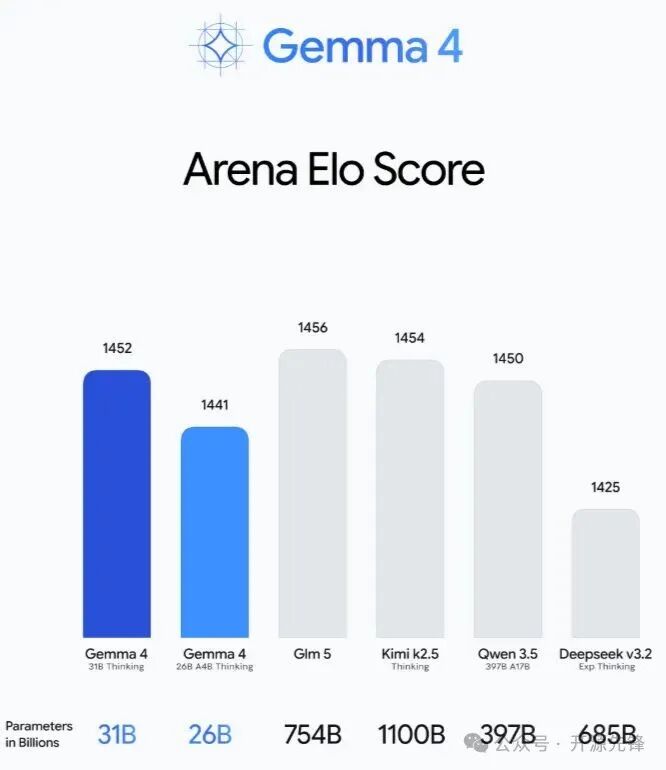
The AI world is buzzing! Google has officially released Gemma 4, its next-generation open-source large language model (LLM). With its reasoning and logic capabilities maxed out, everyone is eager to try it.
However, running powerful AI models locally on a phone is usually a headache—either the configuration is too complex, or the apps are too basic. More importantly, privacy is a concern when data is uploaded to the cloud.
To solve this, Google launched Google AI Edge Gallery, an open-source sandbox app designed specifically to test and run top-tier AI models like Gemma 4 directly on your mobile device.
## What is Google AI Edge Gallery?
Google AI Edge Gallery is a mobile “sandbox” that allows you to run various open-source LLMs entirely offline. It now officially supports the Gemma 4 model family.
The standout feature? Everything stays local. You can experience cutting-edge AI reasoning, logic, and content creation without sending a single byte of data to a remote server. With over 18.2k stars on GitHub, it is currently the premier tool for mobile AI enthusiasts.
## Key Features & Capabilities
-
100% Offline Privacy: Your data never leaves your device. Total closed-loop operation.
-
Official Gemma 4 Support: The first app to provide a native experience for the full Gemma 4 suite.
-
More Than Just Chat:
-
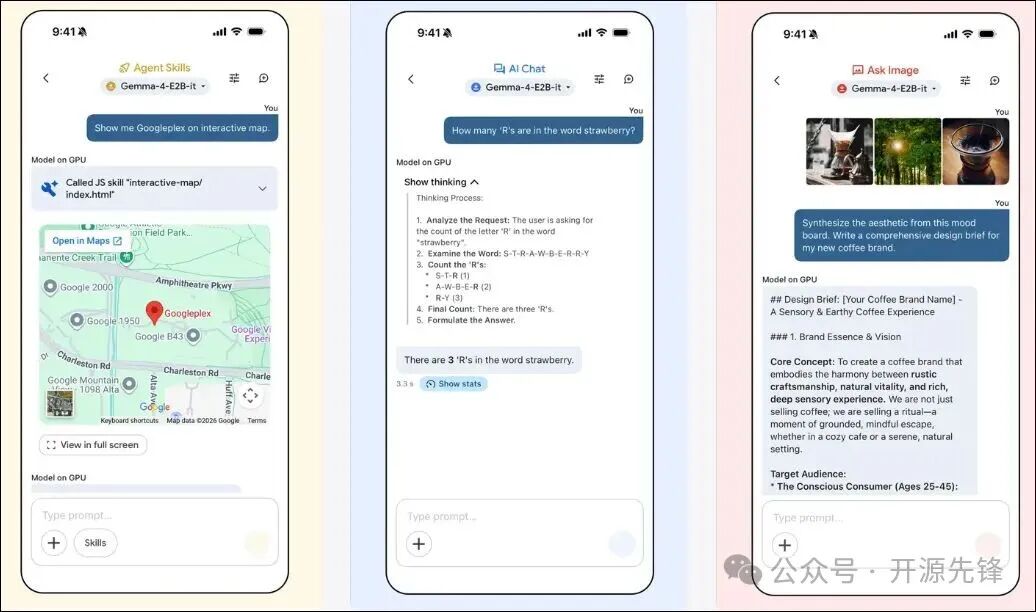
AI Chat with “Think Mode”: Visualize the model’s step-by-step reasoning process—perfect for learning logic.
-
Multimodal Image Q&A: Take a photo or upload an image for analysis, descriptions, or puzzle-solving.
-
Audio Transcription: Real-time speech-to-text and translation—a powerhouse for meetings and interviews.
-
AI Agent Skills: Call on Wikipedia, use Maps, or add custom plugins for travel planning and research summarization.
-
-
Customizable Models: Beyond built-in options, you can load your own converted models and run performance benchmarks.
-
Mobile Automation & Easter Eggs: Control phone tasks via AI or play with “Tiny Garden,” a fun natural-language gardening sim.
## How to Install and Use Gemma 4 Locally
1. Check Compatibility
-
Android: Version 12 or higher.
-
iOS: Version 17 or higher.
2. Download the App
-
Search for “Google AI Edge Gallery” on the Google Play Store or Apple App Store.
-
Pro Tip: If you can’t access Google Play, download the APK directly from the official GitHub Release page.
3. Setup & Model Download
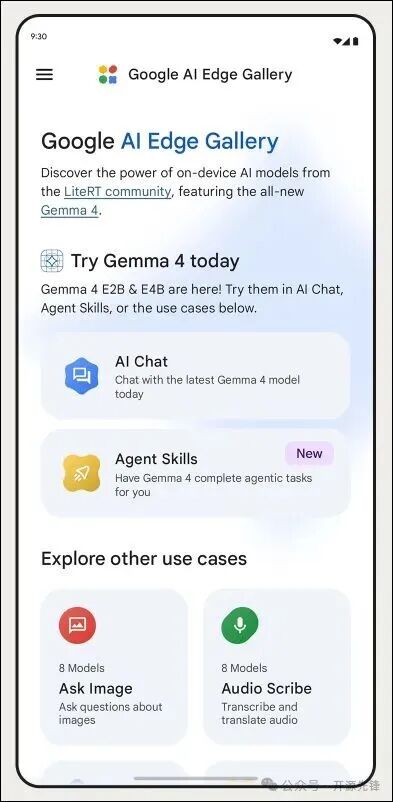
Open the app and you’ll see cards for “AI Chat,” “Skills,” and “Ask Image.”
-
Enter “AI Chat” and select a Gemma 4 version (e.g., E2B for speed, E4B for higher intelligence).
-
Note: Internet is only required for the initial model download. Once downloaded, you can go completely offline.
## Performance & Limitations
Testing on a mid-range Android phone (8GB RAM), the response speed is quite impressive. It supports multiple languages (including Chinese) for interaction across all major functions.
Keep in mind:
-
The knowledge base is not real-time (training data cutoff is January 2025).
-
It cannot search the live web or generate images (it is text/logic focused).
## The Verdict
Google AI Edge Gallery is more than just a demo; it’s a “key to the future.” It proves that AI is evolving into a local intelligent system rather than just a remote service.
If you want to see what your phone is truly capable of, this project is a must-try.