
TuriX CUA : AI Takes Over Windows and MacOS
TuriX-CUA, an open-source project, is also an AI agent that lets AI operate your computer on your behalf.
It equips AI with “eyes” and “hands”, enabling it to look at the screen, move the mouse, type on the keyboard just like a human, and get your work done.
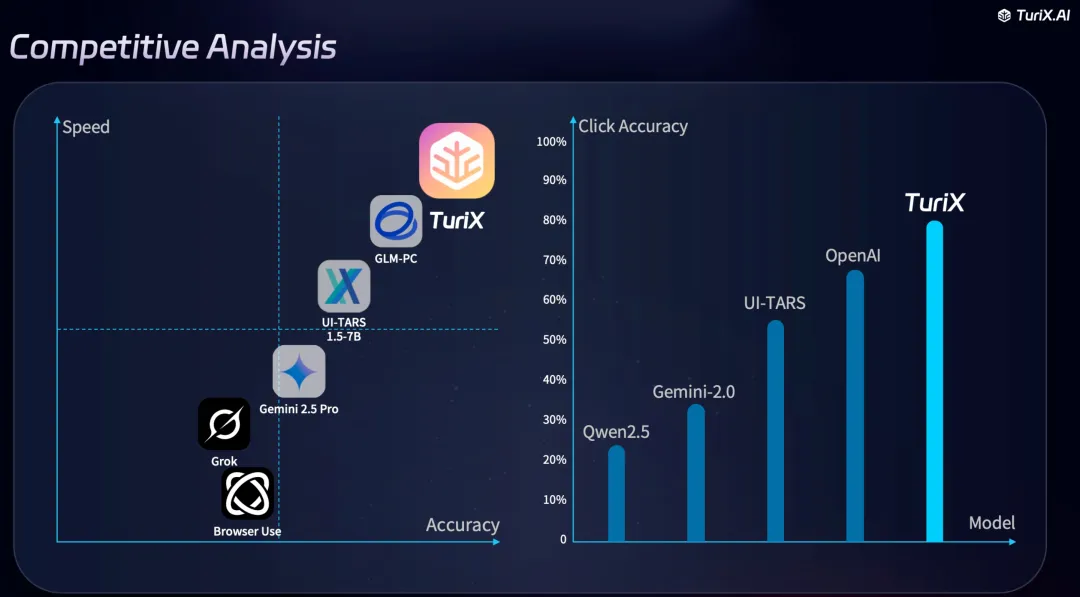
A few days ago, TuriX-CUA released a major update, introducing a multi-model architecture with a test set pass rate exceeding 80% — truly impressive.
01 Project Overview
TuriX-CUA (Computer Use Agent) is an open-source Python-based agent. Its core logic is a perfect example of “brutal aesthetics”:
See: Take a screenshot of your screen every few seconds.
Think: Feed the screenshot to a multi-modal large language model (LLM) and ask, “Dude, the user wants me to book a flight ticket. Given what’s on the screen now, where should I click next?”
Act: The model returns coordinates, and TuriX controls your mouse to move and click there, or type in the input box.
Does it sound like a macro? No — macros are rigid, but TuriX-CUA is adaptive. It knows to close pop-ups and wait when web pages load slowly, which makes it highly intelligent.
Moreover, it outperforms other open-source agents in terms of success rate and speed.
02 Why It’s Worth Attention
Cross-Platform Support
Initially designed exclusively for MacOS, TuriX-CUA expanded to support Windows in the second half of 2025.
This is crucial for most of us who use PCs for work. Simply switch to the Windows branch, and you can run it on Windows.
MCP support means you can use TuriX-CUA as a tool attached to Claude for Desktop or Cursor.
03 How to Use
Although there is documentation on GitHub, there are some pitfalls I need to help you avoid. The following takes Mac as an example; the logic for Windows is similar.
Step 1: Environment Preparation
First, you need a Python environment. It's highly recommended to use Conda to avoid dependency hell.conda create -n turix_env python=3.12 conda activate turix_env git clone https://github.com/TurixAI/TuriX-CUA.git cd TuriX-CUA pip install -r requirements.txtStep 2: Configure the Model
Configure the model in examples/config.json. The official default recommendation is to use their own API (Turix API), which offers free credits upon registration.
Since it’s open-source, you can replace it with your own model. If you have an OpenAI-compatible interface or run Qwen3-VL locally, you can modify the build_llm function in main.py to use it.
Note: The current Qwen3-VL performs exceptionally well in handling UI interfaces and accurately recognizes small icons — highly recommended to try.
Step 3: Permission Setup (The “Permission Hell”)
Because TuriX-CUA needs to control the mouse, keyboard, and take screenshots, Mac’s security mechanism will trigger frequent alerts.
Go to System Settings -> Privacy & Security -> Accessibility, and check your terminal and IDE. If you need to operate Safari, remember to check “Allow Remote Automation” in Safari’s Develop menu.
When running for the first time, the system may pop up a window asking for permission to control the computer. Be sure to click “Allow”; otherwise, the mouse will only twitch in place.
Step 4: Run the Agent
Configure the task, for example, write in config.json:
{ "agent": { "task": "Open Safari, search for the current price of iPhone 17 Pro, then open Notes and record it" } }Then run:
python examples/main.pyAt this point, take your hands off the keyboard, and you’ll see the mouse move on its own — opening the browser, typing text like a ghost. It’s quite a cyberpunk experience.
Openwork
Openwork is the open source Al coworker that lives on your desktop
OpenMTP – android file transfer mac free
OpenMTP effectively bridges the gap between macOS and Android—a divide that often feels like an ecosystem barrier.
Self Operating Computer
A framework to enable multimodal models to operate a computer. It has now gained 10,000 stars on GitHub.
Microsoft OmniParser V2
OmniParser is a comprehensive method for parsing user interface screenshots into structured and easy-to-understand elements, which significantly enhances the ability of GPT-4V to generate actions that can be accurately grounded in the corresponding regions of the interface.
Open Interpreter
You can chat with Open Interpreter through a ChatGPT-like interface in your terminal by running $ interpreter after installing.